
SUMX Support Guides
Use these guides to get started with SUMX, understand what each feature does, and fix common issues. SUMX keeps most app data on your device, does not require a SUMX account, and does not include advertising or analytics tracking.
Getting started with SUMX
SUMX is an everyday and financial calculator built to keep calculations quick, useful and private on your device.
The basics
Open SUMX and you land straight on the calculator, ready to type. There’s no sign-up, no setup screen and no SUMX account needed.
Finding your way around
SUMX is organised into a few key areas:
- Calculator — the main keypad in Basic mode, with Scientific mode available in SUMX Pro
- Tools — focused calculators for percentages, VAT, discounts, margin, markup, units and currencies
- History & Favourites — your completed calculations, with Pro favourites for important results
- Settings — appearance, sound, haptics, privacy and Pro options
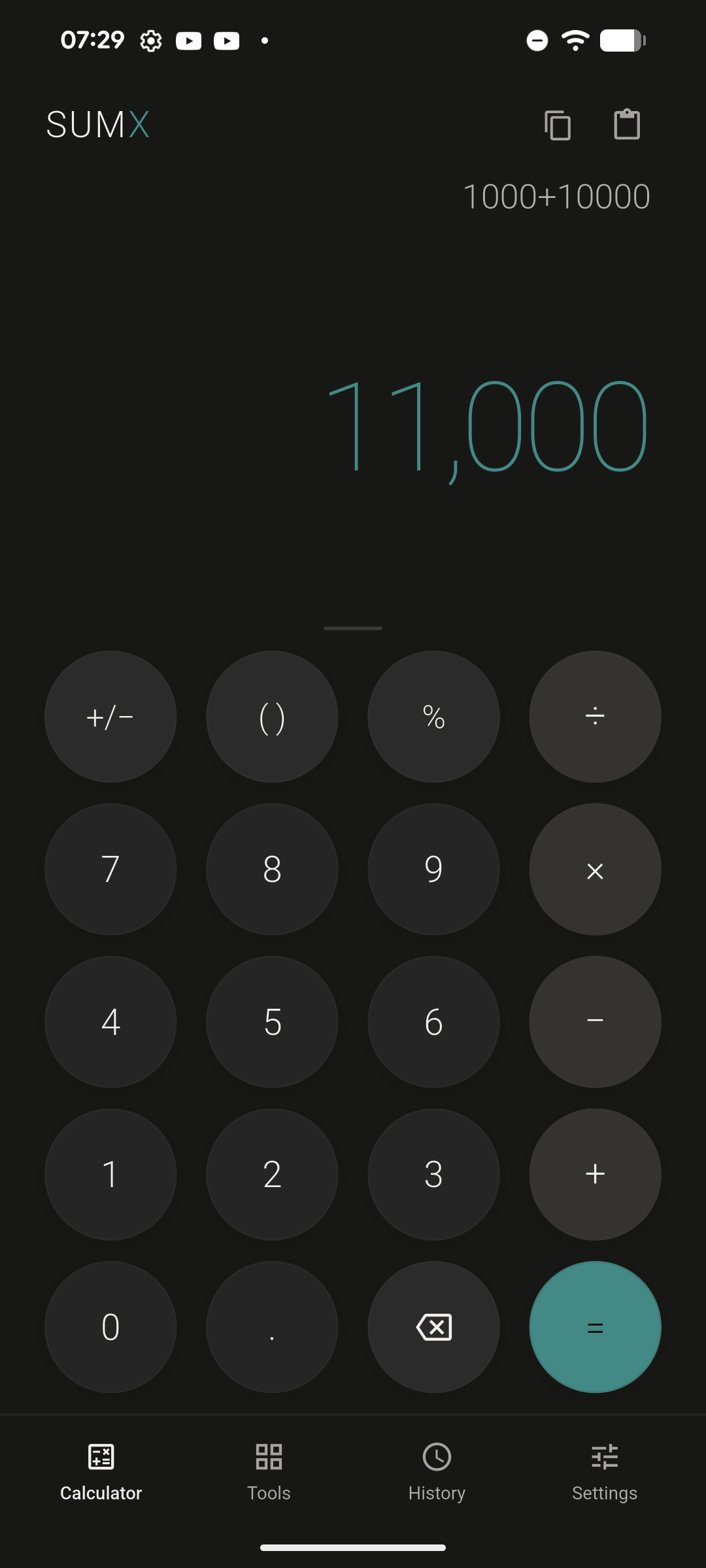
The bar across the bottom is how you move between the four areas. SUMX opens on Calculator, and the other three are one tap away at any time.
The small line above the large figure is the entry the result came from, so you can check what was actually calculated.
Free tools
The free version of SUMX includes:
- Percentage — find a percentage of any number
- VAT — add VAT to a net amount, or extract VAT from a gross total
- Discount — see the final price and exactly how much you save
SUMX Pro tools
SUMX Pro unlocks:
- Scientific mode — advanced calculator functions including trigonometry, logarithms, powers, roots and factorial
- Margin & Markup — calculate margin, markup and profit
- Unit Converter — convert length, weight, area, volume and more
- Currency Converter — convert between currencies using the latest available reference rates
- Favourites — star important calculations and filter History to find them quickly
- Extended History — keep up to 1,000 calculations
The Currency Converter needs an internet connection to fetch or refresh exchange rates. Rates are cached on your device, so if a later refresh fails, the last saved rates can still remain available.
Your calculation history
SUMX Free keeps your 20 most recent calculations. SUMX Pro extends this to up to 1,000 calculations.
The Recent filter shows calculations from the last seven days. This is only a filter — it does not delete older calculations by itself.
SUMX Pro also lets you star calculations as favourites and filter History to find them quickly.
Making SUMX yours
SUMX includes light and dark themes, accent colours, key sounds and haptic feedback. These can be changed from Settings.
SUMX Free includes Teal. SUMX Pro unlocks the full 12-colour accent palette.
Going Pro
SUMX is free to use. A one-time SUMX Pro purchase — no subscription — unlocks Scientific mode, Margin & Markup, Unit Converter, Currency Converter, Favourites, extended history and the complete accent palette. SUMX has no ads in either version.
Need more help?
If something is not working as expected, check Troubleshooting below or email support@xmade.dev.
Using the calculator
SUMX has two calculator modes: Basic and Scientific.
Basic mode
Basic mode is the standard calculator you see when you open SUMX. It supports:
- Number entry
- Addition, subtraction, multiplication and division
- Decimals
- Brackets
- Positive/negative sign toggle
- Backspace to remove one character
- Clear to start again
Scientific mode
Scientific mode is part of SUMX Pro. It adds extra functions above the standard keypad, including:
- Trigonometric functions — sin, cos, tan, asin, acos and atan
- Logarithms and exponents — log, ln and exp
- Roots, powers and factorial
Scientific mode also includes an angle-mode toggle, so you can choose between Degrees, Radians and Grad.
Use the angle mode that matches the calculation you are trying to perform. If a trigonometry result looks wrong, check this setting first.
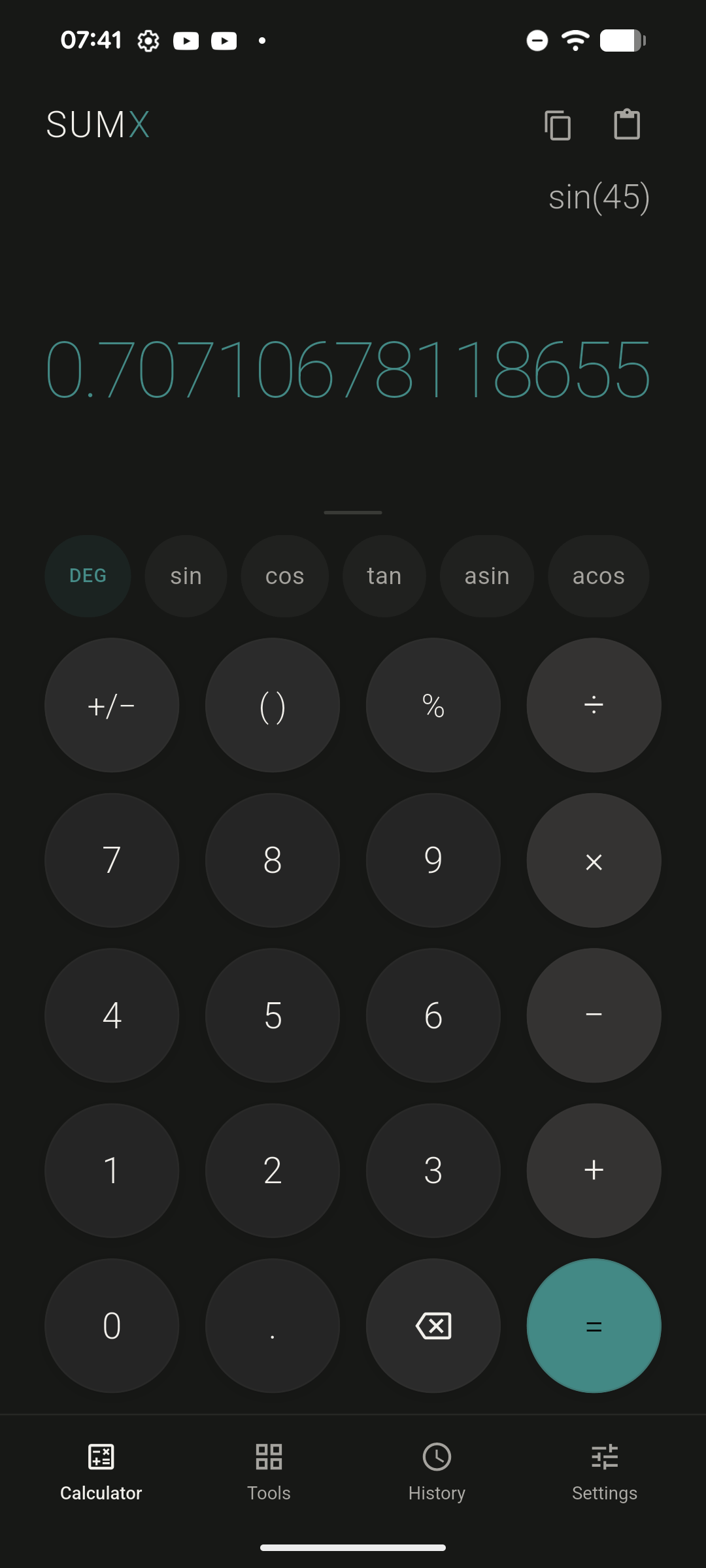
Scientific mode adds a function row between the result and the keypad. Everything else stays where it was, so the standard keys do not move.
The chip at the left of that row is the angle mode — DEG here. Tap it to switch between degrees, radians and grad. If a trigonometry answer looks wrong, this is the first thing to check.
Copying and pasting
- Tap a result to copy it.
- Paste a number into SUMX from your clipboard instead of retyping it.
If a pasted value causes an error, check that it only contains a valid number and does not include extra text, currency symbols or unsupported formatting.
Calculation errors
If SUMX shows an error instead of a result, see Calculation errors under Troubleshooting for what each message means and what to do next.
When to use Tools instead
For percentages, discounts, VAT, margin and markup, unit conversion or currency conversion, use the Tools screen rather than building the calculation manually on the keypad.
Percentage, VAT and Discount are included in SUMX Free. Margin & Markup, Unit Converter and Currency Converter are part of SUMX Pro.
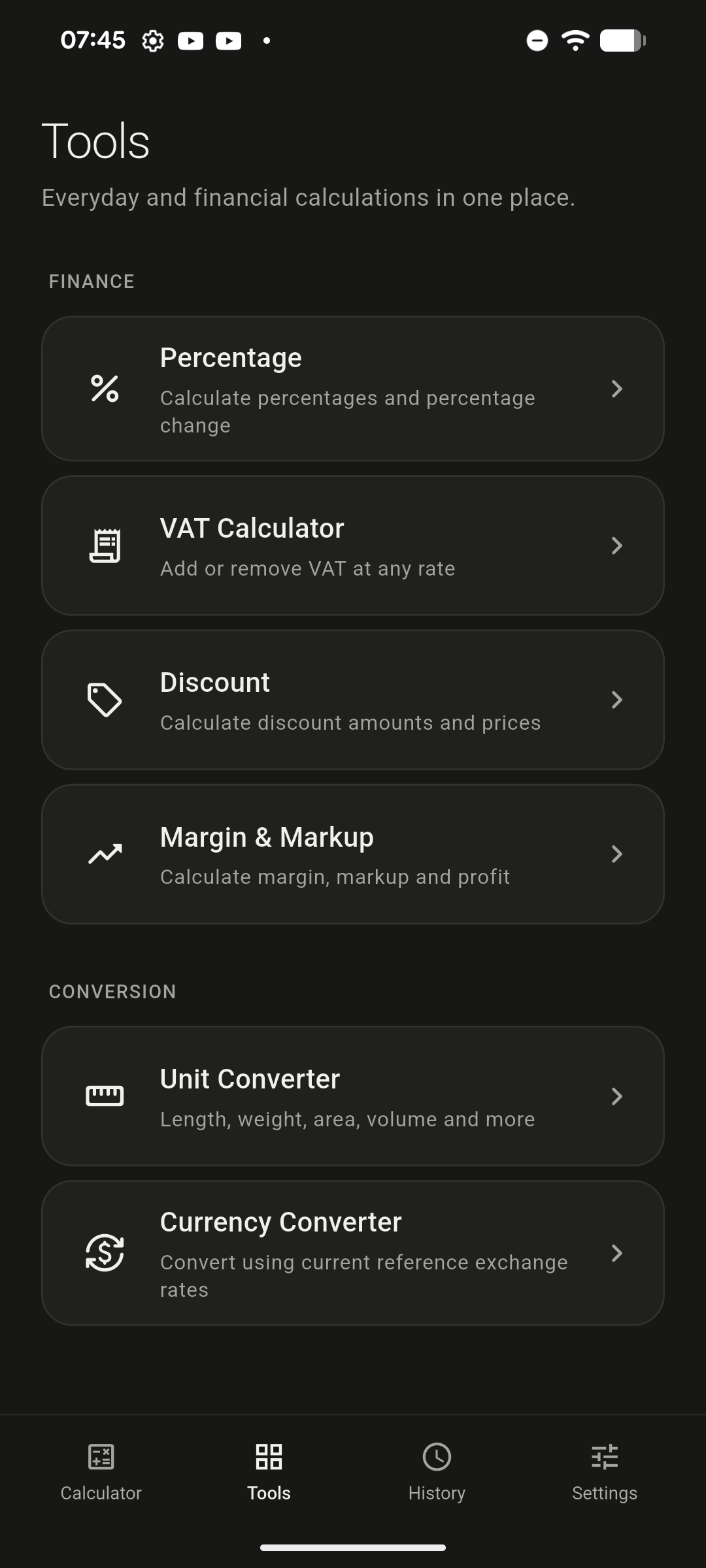
All six tools live behind the Tools icon in the bottom bar, grouped into Finance and Conversion.
This example is a SUMX Pro device, so all six are open. On SUMX Free, Percentage, VAT and Discount work as shown; Margin & Markup, Unit Converter and Currency Converter open the SUMX Pro prompt.
History & favourites
SUMX does not use traditional calculator memory keys such as M+, M−, MR or MC. Instead, it saves completed calculations to History. SUMX Pro also adds Favourites, so you can star important calculations and find them quickly later.
What gets saved
Every calculation you complete is saved automatically. You may see a brief “Saved to history” confirmation after a calculation is completed.
Where your history is stored
Your calculation history is stored locally on your device only.
It is excluded from Android cloud backup, so it will not normally return if you restore a phone from a cloud backup. It may transfer to a new device when using Android’s direct device-to-device transfer.
Free history limit
SUMX Free keeps your 20 most recent calculations. When the limit is reached, older entries are removed as newer calculations are saved.
Pro extended history
SUMX Pro unlocks Extended History, keeping up to 1,000 calculations before older entries start dropping off.
Recent calculations
The Recent filter shows calculations from the last seven days. This is only a filter. It does not delete older calculations by itself.
Favouriting a result
Favourites are part of SUMX Pro.
Free users can see the star action, but tapping it opens the SUMX Pro prompt. With SUMX Pro, you can star important calculations and filter History to Favourites to find them quickly.
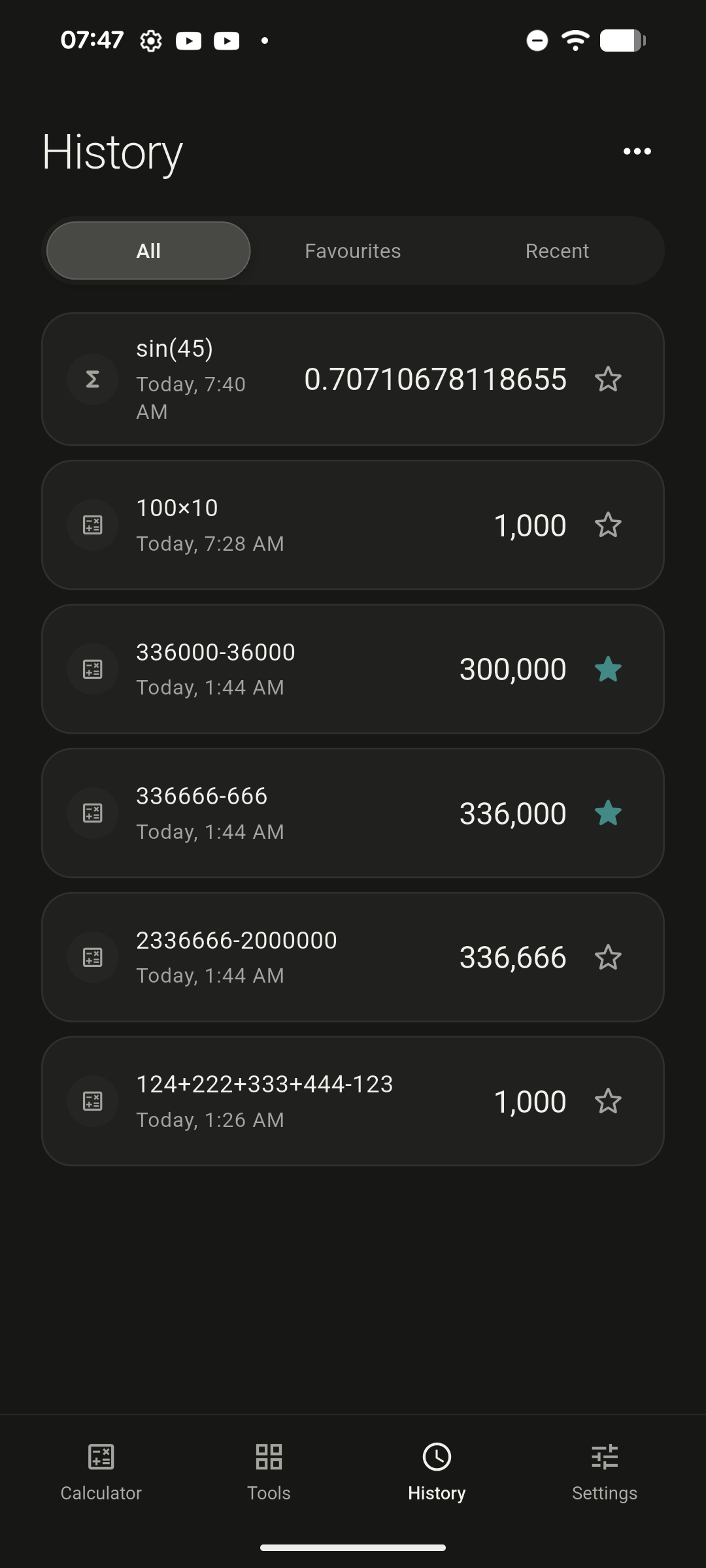
The three buttons at the top are filters, not folders. All shows everything saved, Recent narrows to the last seven days, and Favourites shows only starred results.
The icon at the left of each row shows which tool produced it. This example is a SUMX Pro device: the two filled stars are favourites, which on SUMX Free open the Pro prompt instead.
Clearing history
You can remove individual history entries or clear your whole history from History options.
Clearing all history asks for confirmation first. Once cleared, history cannot be restored from inside SUMX.
Appearance & themes
SUMX can be personalised from Settings > Appearance.
Theme mode
Choose how SUMX follows your phone:
- System — follows your phone’s light or dark setting
- Light — always uses light mode
- Dark — always uses dark mode
If SUMX does not look how you expect, check this setting first. For example, if your phone is in dark mode but SUMX is set to Light, SUMX will stay light.
Accent colours
SUMX includes 12 accent colours: Teal, Antique Gold, Blue, Bronze Stone, Claret, Graphite, Green, Mulberry, Orange, Sage Grey, Smoky Indigo and Violet.
Each accent is tuned for both light and dark mode.
Free vs Pro accents
SUMX Free includes Teal. SUMX Pro unlocks the complete 12-colour accent palette.

Theme and accent sit together near the top of Settings. The Light / Dark / System switch is the first thing to check if SUMX does not look how you expect.
This is the view on SUMX Free: teal is selected and the other eleven accents carry a PRO badge. With SUMX Pro the badges disappear and any of the twelve can be selected.
App icon changes
Changing accent colour also updates the SUMX home screen icon to match, using light and dark icon variants.
If the icon does not update immediately:
- Close SUMX.
- Reopen the app.
- Give your phone launcher a moment to refresh.
Some Android launchers update icons more slowly than others.
Privacy
SUMX is built to keep as much as possible on your device.
What stays on your device
The following are stored locally on your phone:
- Calculations
- History
- Theme choice
- Accent colour
- Key sound setting
- Haptic feedback setting
These are excluded from Android cloud backup. They will not normally return through a cloud restore, although they may move across during Android’s direct device-to-device transfer.
What uses the internet
SUMX uses the internet for two things:
- Currency rates — the Currency Converter fetches the latest available reference rates from Frankfurter, a free exchange-rate service built on European Central Bank data.
- Purchase verification — Google Play processes SUMX Pro purchases. When you buy or restore SUMX Pro, SUMX sends the Google Play purchase token and limited transaction information to an X Made verification service hosted on Google Cloud. The service checks the purchase with the Google Play Developer API before SUMX unlocks Pro.
Currency rates are cached on your device. If a later refresh fails, the last saved rates can still remain available.
X Made does not receive your payment card details, Google password or full Google account information.
What works offline
The main calculator, free tools, history, settings, themes and unit conversion work on your device without needing the internet.
The Currency Converter needs an internet connection to fetch or refresh rates. SUMX Pro purchase and restore also need a connection.
No ads or analytics tracking
SUMX does not include advertising or analytics tracking. It does not collect usage data or build a profile of how you use the app.
Full privacy policy
For full details, open Settings > Privacy Policy in SUMX, or read the SUMX Privacy Policy here.
Troubleshooting
Most SUMX issues can be fixed by checking the steps below.
Calculation errors
If SUMX shows an error instead of a result, use this table.
| Message | What it means | What to do |
|---|---|---|
| Cannot divide by zero / Division by zero | The calculation tried to divide by zero | Change the divisor to a number other than zero |
| Undefined result | The calculation has no valid mathematical answer | Check the expression and try a valid input |
| Invalid number | SUMX could not read the entry as a number | Remove unsupported characters and try again |
| Factorial requires an integer from 0 to 170 | Factorial only works with whole numbers from 0 to 170 | Use a whole number in the supported range |
These messages are not usually bugs. They mean the calculation or input needs correcting.
Currency Converter is not working
The Currency Converter needs an internet connection to fetch or refresh exchange rates.
If you see “Unable to load exchange rates. Check your connection and try again”:
- Check Wi-Fi or mobile data.
- Reopen the Currency Converter.
- Try again once your connection is stable.
Rates are cached on your device. If a refresh fails, the last saved rates can still remain available, but a fresh rate update needs a live connection.
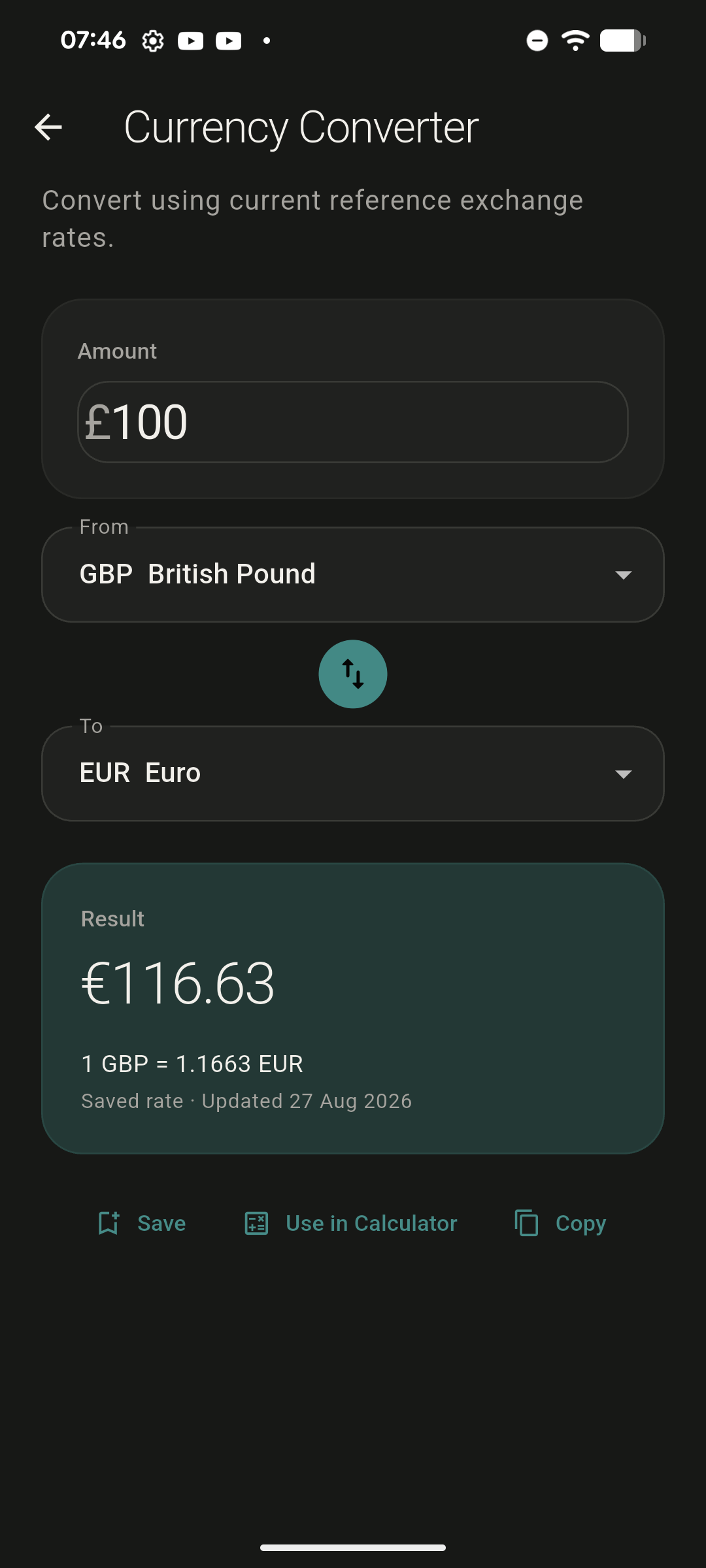
The small line under the rate tells you which rate you are looking at. Saved rate with a date means SUMX is using the copy stored on your device, not a fresh one.
Seeing that line is normal, and the conversion is still correct as of that date. It only matters when you need an up-to-the-minute rate, which needs a live connection.
SUMX Pro purchase issues
If a SUMX Pro purchase or restore does not work, check your internet connection first.
| Message | What it means | What to do |
|---|---|---|
| “We couldn’t complete the purchase. Please try again” | Google Play could not complete the purchase | Check your connection and try again |
| “We couldn’t restore purchases. Please try again” | SUMX could not restore your purchase at that moment | Check your connection and try again |
| “No previous SUMX Pro purchase was found” | SUMX could not find a Pro purchase for the current Google account | Check that you are signed into the same Google account used for the original purchase |
Restore Purchases only works with the Google account that originally bought SUMX Pro.
SUMX Pro purchases are processed by Google Play and verified through an X Made verification service hosted on Google Cloud. X Made does not receive your payment card details, Google password or full Google account information.
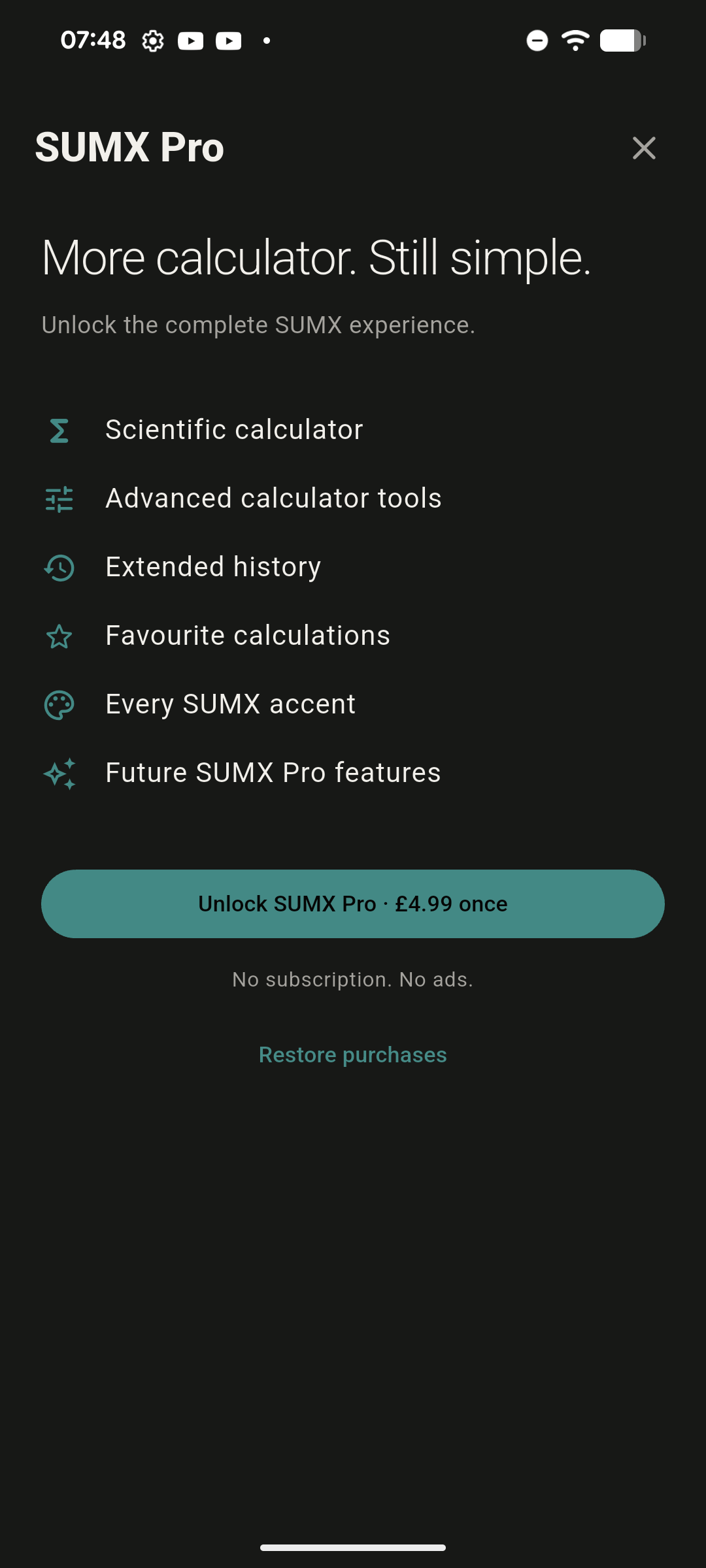
Restore purchases is the link at the bottom of this screen, below the price. Open it from Settings > SUMX Pro.
If you already own SUMX Pro, this screen is where you restore it after reinstalling or moving to a new phone — you are not charged again.
Favourites are asking me to upgrade
Favourites are part of SUMX Pro.
Free users can see the star action, but tapping it opens the SUMX Pro prompt. To star calculations and filter History to Favourites, you need SUMX Pro.
My history only shows 20 calculations
SUMX Free keeps your 20 most recent calculations. This is expected behaviour.
SUMX Pro unlocks Extended History, keeping up to 1,000 calculations.
Recent does not show older calculations
The Recent filter only shows calculations from the last seven days.
This does not mean older calculations have been deleted. To find older saved calculations, check the full History list or change the active filter.
Privacy Policy will not open
If you see “Unable to open Privacy Policy”, SUMX could not open your browser.
Check that:
- You have a browser installed
- A default browser is set
- Your phone is not blocking SUMX from opening external links
Then try opening the Privacy Policy again from Settings.
App icon has not updated
If your app icon does not update after changing accent colour:
- Close SUMX.
- Reopen the app.
- Wait a moment for your Android launcher to refresh.
Some launchers cache icons and may take longer to show the new version.
Theme or accent looks wrong
Go to Settings > Appearance and check:
- Whether SUMX is set to System, Light or Dark
- Which accent colour is selected
- Whether the accent colour is Teal or part of the SUMX Pro palette
If your phone is in dark mode but SUMX is set to Light, SUMX will stay light. If SUMX is set to System, it follows your phone’s current theme.
History is missing after changing phones
SUMX history is stored locally on your device and excluded from Android cloud backup.
If you restore a phone from a cloud backup, your SUMX history may not return. It may transfer when using Android’s direct device-to-device transfer, depending on the device transfer process.
Still stuck?
Email support@xmade.dev and include:
- What you were trying to do
- The exact error message, if one appeared
- Your phone model
- Your Android version, if you know it
- Whether you are using the free version or SUMX Pro
This gives enough information to investigate the issue properly.
Still need a hand? Contact support and we’ll answer directly.